For the past few months, we’ve been developing all kinds of features for the future GIMP 3.4 release. We noticed recently that our changelog was getting quite long - a good problem to have!
While there’s been a lot going on internally, it’s been a while since we made a public progress report. So we want to share details on some of the new features and UX improvements that’ll be available in the first development release, GIMP 3.3.2. This won’t be an exhaustive list (we have to save at least some news for the release itself!) but hopefully it will give you some insight into the current direction and progress of GIMP’s development.
New Project File Format
The big focus for maintainer Jehan recently has been developing a new project file format for GIMP.
XCF has been GIMP’s primary project format since 1997, and it has served many users well. Over time however, we’ve observed more and more limitations of the binary XCF format. Among other issues, it does not easily support very large or complex projects, such as the multi-page and animation features currently planned for GIMP 3.6.
The new project file format will follow a more common “zipped XML” structure. While the technical details are still being designed and implemented, this change will allow for faster saving since we’ll only need to update parts of the file instead of the whole thing each time. It will also set the stage for much desired features such as auto-saving, which will now be much more feasible.
That said, XCF is not going away! Backwards compatibility is important to us, and we will continue to support loading XCFs in all future versions of GIMP. (For instance, we’re quite proud that a XCF file made by a small company for their logo in 1998 still renders the same way in the latest version of GIMP)
However, going forward we will only add support for saving/loading new features in the new project file format once it is finalized.
MyPaint Brush: Spectral Blending
During GIMP 3.2’s development, we upgraded to a newer version of the MyPaint brush engine. While this brought new brushes and canvas interactions to the MyPaint Brush Tool, one feature that was left out was Spectral Blending.
Spectral Blending simulates the effects of blending physical pigments in digital art. For example, blending yellow and blue will produce a green color instead of darker yellow, and blending red and yellow will create an orange mix.
Fortunately, new contributor Cassidie Grogan picked up the slack and implemented this feature.
There is now a Spectral Blending checkbox in the MyPaint Brush Tool Options. If checked, the new
blending method is used. You can control the strength of the blending with the Pigment slider.
In addition, maintainer Michael Natterer improved the MyPaint Brush preview code to display at their full size instead of 48x48 pixels. This fixes an issue where the previews appeared blurry on larger screens.
Non-Destructive Editing
Alx Sa has continued making updates to our non-destructive filter code. To list a few:
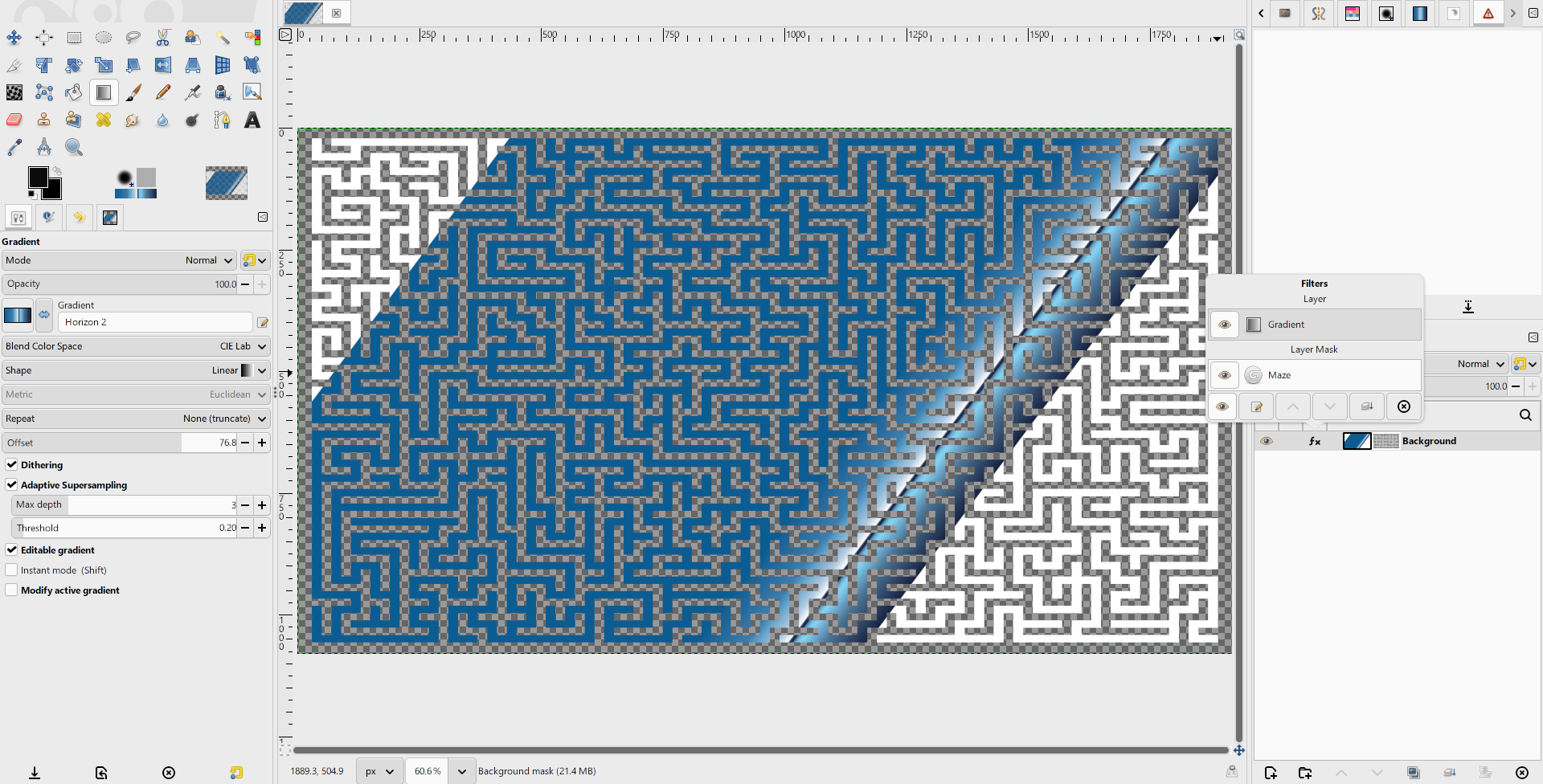
You can now apply filters non-destructively to Layer masks! To go along with this, the filter popover has been redesigned by Reju to show the active filters for both the layer and its mask, so you can interact with both on the same screen.
The Gradient Tool can now be
used non-destructively! If you check Editable Gradient in the Tool Options, the
gradient you create will be added to the filter stack like any other effect. You can
toggle its visibility, rearrange its position in the filter stack and delete it. You
can also edit the gradient, which will switch back to the Gradient Tool to let you
make further changes.
Filters without dialogs (such as Invert) can now be applied non-destructively on non-raster layers such as layer groups and link, text, and vector layers.
PSD Support Improvements
Normally we list all file format updates in a combined section, but there has been so much work done on PSD support (and by so many people) that we wanted to highlight it in more detail.
First, new contributor Frank Teklote has been busy improving our compatibility with PSDs. His big project for this release was creating a PSD metadata export procedure for TIFFs and JPEGs. This complements our existing PSD metadata import procedure, meaning that if you import a JPEG with paths or a TIFF with layers (or create one in GIMP), that information can now be retained in the exported image.
Another great thing about Frank’s work is that as we continue to improve our PSD compatibility, the TIFF and JPEG export features will automatically get those updates too!
Related to that, Jacob Boerema has implemented PSD Descriptor import support. Most of our current PSD support has been based on the public Adobe specification. This document was last updated in 2019 however, and modern PSDs use a relatively undocumented text format called Descriptors to store many features.
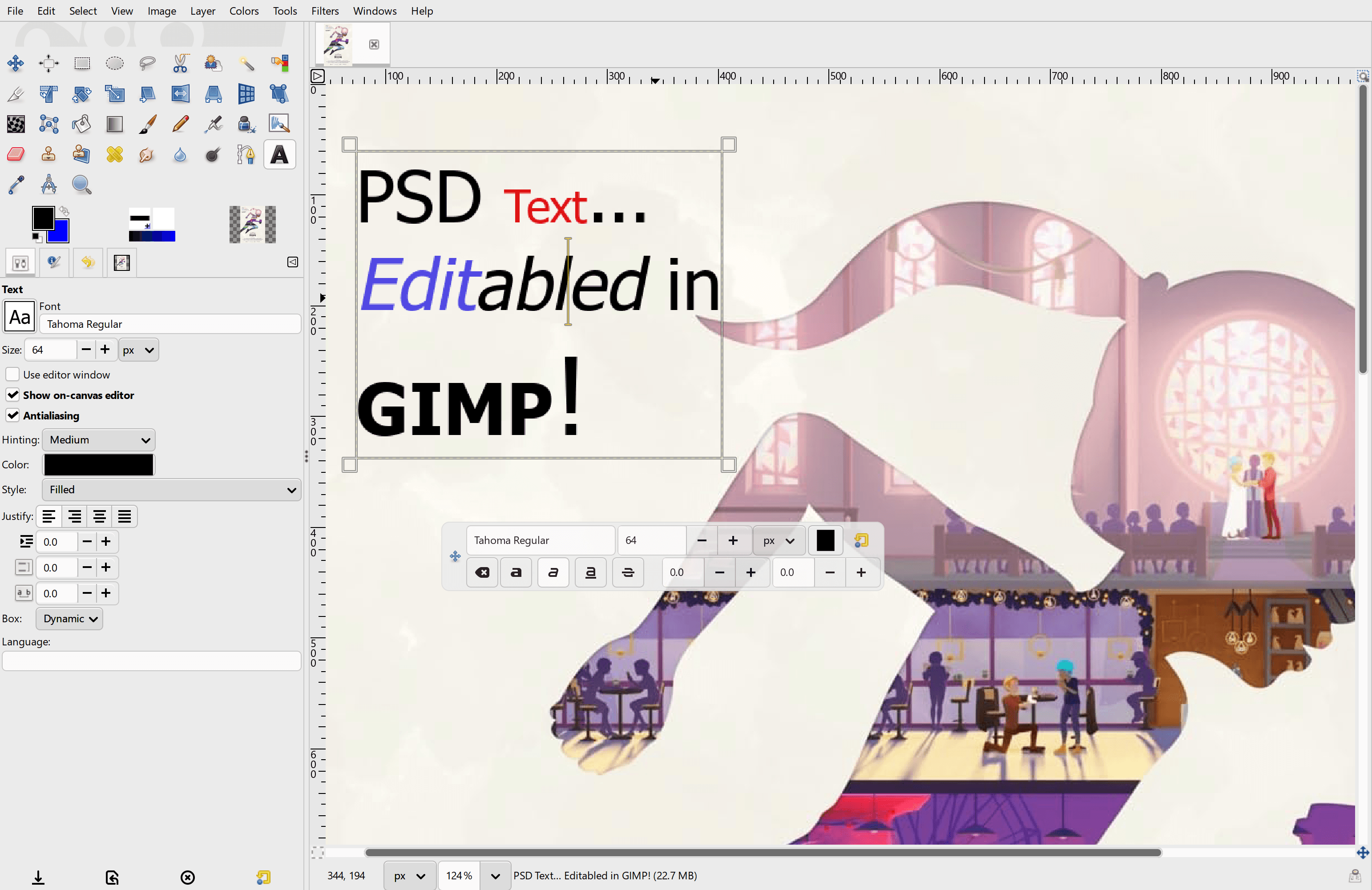
Now that GIMP can read descriptors, we’ve begun drastically improving our PSD import support. To list just a few updates: text layers are now editable, a number of adjustment layers and modern layer styles appear as their GEGL equivalents, and solid color shapes are imported as vector layers. This is an active area of development, including by two of our GSoC students Akascape and Waris Maqbool. We hope this work will make it easier for GIMP users to interact with existing PSD projects!
Native File Chooser Dialogs
We have always used the file chooser dialog provided by the GTK GUI library for people to find, load, and save files in GIMP. While the file chooser does the job, it often works differently than the “native” file chooser on non-GNOME platforms like Windows, macOS, and KDE. Additionally there have been some changes to the UI of this dialog in GTK3, which has inspired some strong feedback in our issue tracker!
Therefore, Alx Sa has begun porting GIMP’s file choosers to the “native” option provided in GTK3. This means that when you open or save a file, you will see your platform’s standard file chooser dialog instead of the GTK dialog (unless your platform uses that already, in which case there will be no change!)
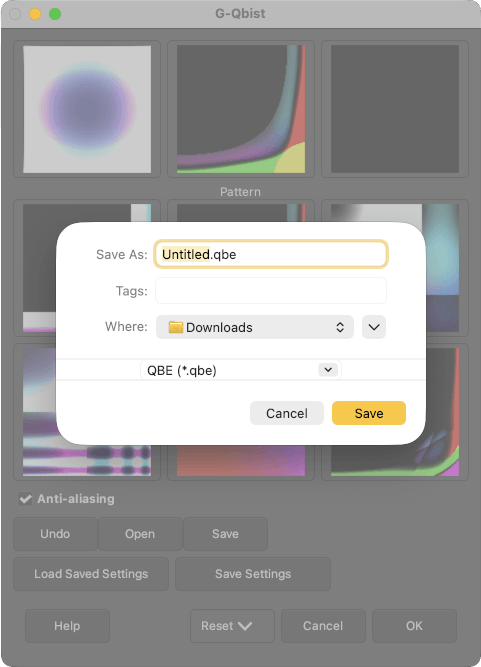
Many of the simple dialogs have already been converted. Those with more complex additional features will require some workflow redesigns, which we’re still developing.
User Experience and Interface Updates
A lot of new and existing contributors have submitted improvements to GIMP’s user interface and its user experience. We wanted to highlight their efforts, and encourage you all to continue sharing your feedback on our design issue tracker.
Designer Denis Rangelov has been hard at work updating GIMP’s UI icons. He recreated our layer lock icons to create a more consistent look.
He also took on the monumental task of converting all 78 of our cursor icons to SVG, which will allow us to scale them for higher resolution displays without losing quality!
| Original Raster Cursor | Denis’s Vector Cursor |
|---|---|

|

|
There have been reported performance issues when drawing or zooming into the canvas when the canvas view was rotated. New contributor woot000 diagnosed the problem and created a fix. Now the “checkerboard” transparency pattern no longer rotates when the canvas does, which significantly boosts performance when painting or editing. They also fixed a related issue where the checkerboard pattern would disappear when zooming into the canvas past a certain point.
Gabriele Barbero implemented a redesign of the Search Action UI which was designed by Denis Rangelov. The new layout makes the associated shortcut key more visible, and is more consistent with the menu layouts.
Bruno Lopes has been working to fix issues with pop-up dialog displays on macOS. Since traditionally we have fewer macOS developers compared to other platforms, we’re really happy to see improvements for these users!
New contributor Andreas Vukman improved our Pattern dock display. Now smaller patterns tile to fill the available space, creating a consistent preview for all patterns instead of having some patterns display with odd amounts of padding. We think it makes the dock look much nicer!
Richard Gitschlag has updated the on-canvas text editor to allow selections when you Shift+Click in the text. It should now work similar to what you can do in a word processor like LibreOffice.
In previous versions of GIMP, you imported or exported metadata from the Metadata Editor by selecting an option in a dropdown. Ahmed E. Yassin has made this process more intuitive (and more consistent with the rest of GIMP’s UI) by replacing the dropdown with two buttons instead.
Ondřej Míchal reviewed several portions of GIMP’s UI and replaced many instances of the Spin Entry widget with
Spin Scale. The Spin Entry widget is difficult to use when the width is shrunk, so this change improves usability
in many areas of the UI.
Assorted Changes and Fixes
Our four GSoC interns have been continuing their work since the midpoint update. Recently, Waris Maqbool‘s Sharpen filter was merged into GEGL, so it’ll be available in the next GEGL release.
New contributor Dimitriy Ryazantcev has submitted several patches for improving our Windows ICO/CUR/ANI support. They’ve already fixed the rendering for certain 32bit ICO formats and made our loading and preview algorithms better match the Windows specification.
Estecka has fixed a rendering issue when applying NDE filters on passthrough layer groups, which made the image look different depending on whether the group had child layers or not.
New contributor Petr Vorel fixed a bug where pressing Alt+0 did not open the tenth most recent image in your history.
Lloyd Konneker, our main Script-fu contributor, fixed a regression in third party scripts where the number range for certain parameters wasn’t shown in the GUI.
Jacob Boerema and Alx Sa have responded to and patched a number of security reports about potential flaws in some of our image plug-ins.
What’s Next
There’s more in-progress work that we look forward to sharing with you all soon!
There is not an official 3.3.2 development release yet, as several roadmap items are still in-progress. If you’re feeling really adventurous and just can’t wait, you can try our “nightly” builds. Instructions are under the Automatic Development Builds header.
In the meantime, we are planning to release GIMP 3.2.6 in the coming weeks. It is a stable release so it won’t include many of the new features described here. However, it will have a number of important bug fixes and small improvements. We’ll discuss these more in the 3.2.6 release news post!